This unit is about developing FHIR Clients using reference libraries, and connecting to Argonaut/IPS-compliant FHIR servers.
We will present the general concepts for all client libraries (how to perform common tasks in FHIR: connecting, accessing resources, etc.) and then describe how each library allows you to do each task.
So, this unit in fact contains three different subunits on how to use each library (Java, .NET, JavaScript).
These subunits have a set of micro assignments. These assignments will not be graded and the solutions will be posted along the reading material. You can choose to try to solve them by yourself or just review and try the solutions).
What you'll learn
After Unit 2, you will be able to:
- Describe the general structure of a FHIR client: connection, security, resource model. [Both tracks]
- Relate the content of the IGs to their related structures in selected FHIR computer language implementations (JavaScript, Java, C#) using reference libraries. [Both tracks]
- Produce a FHIR client capable of connecting to an Argonaut Data Query server, find a patient, receive a set of resources and display them to the user. [Track A]
- Produce a FHIR client capable of connecting to an Argonaut Provider Directory server, and find providers for a given specialty next to the patient location, and display the details to the user. [Track A]
- Produce a FHIR client capable of connecting to a FHIR/IPS server, find a Patient Summary, and display it to the user. [Track B]
- Produce a FHIR client capable of connecting to a vocabulary server in order to retrieve a set of values for selections or value translations. [Both tracks]
This particular subunit talks about the FHIR .NET API, so we call this "Our FHIR .NET Handbook."
The FHIR .NET API is maybe the most used library for FHIR in the .NET world.
It was open-sourced by Fire.ly (https://fire.ly/fhir-api/).
Note:
It's not "THE FHIR .NET Handbook" because we included only the information relevant for you to be able to fulfill this unit's goals.
In the following sections of this chapter we will explain how one of the most mature and complete FHIR libraries allows you to implement all the functionalities described in the first unit of this module (FHIR Clients).
To work with FHIR R4 and the FHIR .NET API, you will need Visual Studio 2015+ or Visual Studio Code in Mac.
We implemented all the examples as console applications, so you don't need to deal with platform issues (forms, etc.).
Throughout these sections, you will see three distinct icons.


Sometimes to illustrate a method we use both examples and recipes, and sometimes only examples, depending on the subject's complexity.

Downloading the FHIR. NET API
The easiest way is to use NuGet or dotnet (dotnet add package Hl7.Fhir.R4).
These are the required NuGet packages.

If you want to manually download the FHIR .NET API, use the GitHub link: https://github.com/firelyteam/fhir-net-api
Documentation for the FHIR .NET API is here: http://docs.simplifier.net/fhirnetapi/
Note that it's for DSTU3 but R4 really isn't that much different. .
Referencing the FHIR .NET API
This should be in your project file after adding the package.
<ItemGroup>
    <PackageReference Include="Hl7.Fhir.R4" Version="1.6.0" />
</ItemGroup>
You should use this fragment to include the reference in your class files.
using Hl7.Fhir.Model;
using Hl7.Fhir.Rest;
FHIR version / Context
There is a different version of the FHIR .NET API for each FHIR version, so you cannot define the version in runtime, you just use the appropriate library.
Endpoint
To create a FHIR client with .NET API just call the FhirClient() method with the endpoint.
Example #C-1: Create Fhir Client
This will create a connection to our course server.
string FHIR_EndPoint = "https://hl7-ips-server.hl7.org/fhir";
var client = new Hl7.Fhir.Rest.FhirClient(FHIR_EndPoint);
The endpoint is the address of the server without specifying any resource.
This client variable will carry all operations against the server.
Micro Assignment #C-1: Set up your .net api environment.
- Set up your preferred Visual Studio /2017+) or Visual Studio Code.
- Install .NET or .NET CORE.
Option 1
- Open the fic_maex.csproj project and compile it.
- Run the project, selecting MA_C01 as your project.
- You should only see this message: "I am just a skeleton so I do nothing," because this program only creates the client.
Option 2
- Follow these steps to create a new .NET console program: https://www.c-sharpcorner.com/article/how-to-create-a-c-sharp-console-application-and-debug-in-visual-studio-code/
- Include the FHIR .NET API by running in the console or NuGet
dotnet add package Hl7.Fhir.R4
- Change the main method in program.cs to this:
  string FHIR_EndPoint = "https://hl7-ips-server.hl7.org/fhir";
   var client = new Hl7.Fhir.Rest.FhirClient(FHIR_EndPoint);
Console.WriteLine("I am just a skeleton so I do nothing");- Remember to include the reference in your class files.
- If you run the program, you should just see the final message "I am just a skeleton so I do nothing"
We will call this program the minimal skeleton. You can use it to begin every micro assignment involving communication with a FHIR server.
All authentication options in FHIR .NET API are implemented by adding headers before issuing the request.
Authentication with Bearer Token
Create the request header with the token.
Note: You will need to obtain the token from an authorization server.
client.OnBeforeRequest += (object sender, BeforeRequestEventArgs e) =>
{
  // Replace with a valid bearer token for your server
 e.RawRequest.Headers.Add("Authorization", "Bearer ya29.QQIBibTwvKkE39hY8mdkT_mXZoRh7Ub9cK9hNsqrxem4QJ6sQa36VHfyuBe");
};
Basic Authentication
Remember that a basic authentication server requires sending your user name and password. Basic authentication is not recommended ... but if you need to implement it, this is how it's done.
client.OnBeforeRequest += (object sender, BeforeRequestEventArgs e) =>
           {

   string authInfo = "username:password";
   authInfo = Convert.ToBase64String(Encoding.Default.GetBytes(authInfo));
   e.RawRequest.Headers.Add("Authorization", "Basic " + authInfo);
           };
Micro Assignment #C-2: Try different authentication methods
Micro Assignment
Modify the skeleton to use Basic Authentication.
Modify the skeleton to use Bearer Token authentication.
Header for Encoding
In FHIR .NET API, this is a client parameter, allowing you to choose which syntax you expect to send and/or receive from the server:
Recipe # C-1: Setting the Resource Encoding (JSON or XML)
client.PreferredFormat=ResourceFormat.|encoding|; You need to replace:
| Json or Xml |
Other Headers
FHIR .NET API allows the inclusion of any other header using the same technique (adding headers to the request before issuing it).
Micro Assignment #C-3: Change fhir .net api client Encoding
Modify the skeleton to use JSON encoding.
Note: Remember to import the appropriate classes from the FHIR .NET API model –see more details in the Resource Model section.
Direct Read (READ)
In order to perform a direct read of a FHIR resource instance when you know the resource id in FHIR .NET API, you need to do this:
Recipe #C-3: Direct Read
string ResourceLogicalId = "|ResourceClass|/|ResourceId|";
var MyResource = client.Read<|ResourceClass|>(ResourceLogicalId);
You need to replace:
| the name of the resource class. Example: Patient |
| the server-assigned logical id of the resource |
Example #C-2: Read a patient instance from the logical id
This would read the patient with id=159:
string PatientLogicalId = "Patient/159";
var MyPatient = client.Read<Patient>(PatientLogicalId);
Version Read (VREAD)
In order to perform a version-aware read of a specific version of a FHIR resource instance when you know the resource id and version in FHIR .NET API, you need to do this:
Recipe #C-4: Version Read
string ResourceLogicalVersionedId = "|ResourceClass|/|ResourceId|/_history/|Version|";
var MyResource = client.Read<|ResourceClass|>(ResourceLogicalVersionedId);
You need to replace:
| the name of the resource class. Example: Patient |
| the server-assigned logical id of the resource |
| the version of the resource |
Example #C-3: Read a Specific Version of a Resource Instance
This would read the patient with id=159 and version 1:
string PatientLogicalId = "Patient/159/_history/1";
var MyPatient = client.Read<Patient>(PatientLogicalId);
Direct Read using Resource Identity Builder
FHIR .NET API Read only accepts URLs, so if you have the resource type and the resource id in different variables, you need to use ResourceIdentity() to create a URL to read.
Recipe #C-5: Direct Read using ResourceIdentity()
var MyPatient=client.Read<|ResourceClass|>
(ResourceIdentity.Build("|ResourceClass|", "|ResourceId|"));
You need to replace:
| the name of the resource class. Example: Patient |
| the full address endpoint + assigned id/version of the resource |
Example #C-4: Read a Resource Using ResourceIdentity()
This would also read the patient with id=159:
var MyPatient=client.Read<Patient>(ResourceIdentity.Build("Patient", "159"));
Micro Assignment #C-4: Read using all methods
- Modify the skeleton to read patient with id 109
- Modify the skeleton to v-read patient with id 109 / version 1
- Modify the skeleton to read patient 109 using ResourceIdentity()
Note: The provided ids are just examples.
If in doubt, use Postman first to select a patient to read.
Creating a new instance of a resource class
In order to create a new instance of a FHIR resource you need to follow these steps:
Recipe # C-6 : Create a Resource Instance
- Create and populate the resource instance.
- Invoke the create method in the server.
- Process the server response (outcome).
//Step 1: Create the Instance
var |MyResource| = new |ResourceClass|();
//Step 2: Populate the Instance, for each element to populate
|MyResource|.|ElementName|=|ElementValue|;    or
|MyResource|.|ElementName|=new |ElementType|(|ElementValue1|,...,|ElementValueN|);  or
|MyResource|.|ElementName|.add(new |ElementType|(|ElementValue1|,...,|ElementValueN|);
 //Step 3: Invoke in the Server
try
{
   |ResourceClass| |CreatedResource| = client.Create<|ResourceClass|>(|MyResource|);
    Console.WriteLine(|CreatedResource|.Id);
}
catch (FhirOperationException Exc)
 {
   Console.WriteLine(Exc.Outcome.ToString());
 }
You need to replace:
| The name of the resource class. Example: Patient |
| The name and value - data type valid - of the element to fill in the resource |
| FHIR type of the element to create |
| The variable holding the instance you are creating |
| The variable holding the instance created by the server as a response |
Example #C-5: Create a Practitioner Instance
Practitioner Data:
Dellacroix, Madeleine, Canada Practitioner # (http://canada.gov/cpn : 51922)
Phone #: 613-555-0192 Address: 3766 Papineau Avenue, Montreal, Quebec, H2K 4J5
Email: qcpamxms9dq@groupbuff.com Specialty: Gynecologist (http://canada.gov/cpnq : OB/GYN)
Micro Assignment #C-5: Create a new Patient resource
Patient data:
Smith, Alan, born 06 May 1965, male, mrn: http://testpatient.id/mrn/99999999
Recipe # C-7: Update a Resource Instance
In order to update an existing instance of a FHIR resource, you need to follow these steps:
- Load the existing resource instance from the server using any of the techniques described in our previous "Read" section.
- Modify or add the needed resource attributes.
- Invoke the update method in the server.
- Process the server response (outcome).
String ResourceLogicalId = "|ResourceClass|/|ResourceId|";
|ResourceClass| MyResourceName = client.Read<|ResourceClass|(ResourceLogicalId);
//Step 2: Populate The Instance, for each element to populate
|MyResource|.|ElementName|=|ElementValue|;    or
|MyResource|.|ElementName|=new |ElementType|(|ElementValue1|,...,|ElementValueN|);  or
|MyResource|.|ElementName|.add(new |ElementType|(|ElementValue1|,...,|ElementValueN|);
|ResourceClass| UpdatedResource = client.Update<|ResourceClass|>(MyResourceName);
Console.WriteLine(UpdatedResource.VersionId);
You need to replace:
| The name of the resource class. Example: Patient |
| For non-repeating elements: the name and value - data type valid - of the element to fill in the resource |
| For repeating elements: the name of the element to add to the resource or element. Not only when they actually repeat, but IF the cardinality is 0/1...n |
| The variable holding the instance you are creating |
| The resource id for the resource instance you need to update |
Example #C-6: Update a Practitioner Resource Instance
We will update the resource for the new Practitioner resource,adding the photo.
Micro Assignment #C-6: Update the patient resource created in #C-5
This is the new patient information:
Patient Address: 3600 Papineau Avenue, Montreal, Quebec (H2K 4J5), Canada
Patient Phone #: 613-555-5555
How to delete an existing instance of a resource
Although it is rarely used, some libraries allow deletion of resources. Server-specific processing will determine if the deletion is processed or rejected.
In order to delete an existing instance of a FHIR resource, you need to follow these steps:
Recipe #C-8: Delete a Resource Instance
Just invoke the delete method in the server.
String ResourceLogicalId = "|ResourceClass|/|ResourceId|";
client.Delete(ResourceLogicalId);
You need to replace:
| The name of the resource class. Example: Patient |
| The resource id for the resource instance you need to delete |
Example #C-7: Delete Practitioner Resource Instance
We will delete the resource for our Practitioner:
string FHIR_EndPoint = "https://hl7-ips-server.hl7.org/fhir";
var client = new Hl7.Fhir.Rest.FhirClient(FHIR_EndPoint);
String PractitionerLogicalId = "Practitioner/120376";
client.Delete(PractitionerLogicalId );
Micro Assignment #C-7: Delete the Patient resource created previously
We will explore some of the advanced methods in FHIR using the FHIR .NET API
Advanced methods include:
- getting the server conformance statement
- invoking special methods defined for specific resources, like $everything or $match for Patient, and
- the FHIR terminology methods - special methods for use when working with a FHIR terminology server, related to ValueSets and CodeSystems
Obtaining the server's capability statement
Conformance in the FHIR .NET API is represented using the capabilities() method of the client class.
Note: Remember to import the appropriate classes from the FHIR .NET API API.
To obtain the statement, just invoke it with the parameter ofType(CapabilityStatement.class).
Recipe #C-9: Obtain the Server Capability Statement
var resource = client.CapabilityStatement(); The response is a resource, so it can be serialized to JSON or XML, or explored like any other FHIR resource.
Micro Assignment #C-8: Obtain the conformance resource of our course server
Endpoint: https://hl7-ips-server.hl7.org/fhir
Extended operations in FHIR .NET API involves calling the operation() method with the required parameters.
There are three different kinds of operations: applied to the whole server, to a specific resource, and to a specific instance of a specific resource.
Instance Operations
Recipe #C-10: Executing an extended operation on a specific resource instance
UriBuilder UriBuilderx = new UriBuilder(FHIR_EndPoint);
UriBuilderx.Path = "|ResourceClass|/|ResourceId|";
Parameters par = new Parameters();
par.Add("|ParameterName|", new |ParameterType|(|ParameterValue|));
Hl7.Fhir.Model.Resource ReturnedResource = client.InstanceOperation(UriBuilderx.Uri, "|OperationName|", par);
if (ReturnedResource is Hl7.Fhir.Model.Bundle)
 {
  Hl7.Fhir.Model.Bundle ReturnedBundle = ReturnedResource as Hl7.Fhir.Model.Bundle;
 }
You need to replace:
| The name of the resource class. Example: Patient |
| The resource id for the resource instance you need to delete |
| Parameter type defined for the operation (string, date, etc.) |
| Name of the parameter |
| Value of the parameter |
| Name of the operation (example: $everything) |
Example #C-8: Executing the $everything extended operation
Executing the $everything method for a Patient instance for a given period.
UriBuilder UriBuilderx = new UriBuilder(FHIR_EndPoint);
UriBuilderx.Path = "Patient/73412";
Parameters par = new Parameters();
par.Add("start", new FhirDateTime(2019, 11, 1));
par.Add("end", new FhirDateTime(2020, 2, 2));
Hl7.Fhir.Model.Resource ReturnedResource = client.InstanceOperation(UriBuilderx.Uri, "everything", par);
if (ReturnedResource is Hl7.Fhir.Model.Bundle)
 {
  Hl7.Fhir.Model.Bundle ReturnedBundle = ReturnedResource as Hl7.Fhir.Model.Bundle;
 }
Micro Assignment #C-9: Use $everything to obtain all resources for a patient
Obtain all resources associated with patient 72191 from December 2019 to March 2020.
Conditional create and Update in FHIR .NET API involves including the condition parameter when creating or updating the resource.
The method for representing the condition is to add one or more search conditions as parameters of the operation.
Example #C-9: Conditional Operation - Match by Criteria
SearchParams conditions = new SearchParams();
conditions.Add("identifier", "http://myident.com.ar|123456" );
Patient CreatedPatient = client.Create<Patient>(MyPatient,conditions);
Remember to process the error condition and outcome (you should always process both anyway!) because three different conditions may occur:
- Created: The resource was created so outcome.getCreated() will return non-null so you can call outcome.getId() to retrieve the id for the new resource (if needed).
- Found: The resource was found so outcome.getCreated() will return null.
- Precondition Failed: There was an error condition because more than one instance of the resource existed (Error 412).
Example #C-11: Conditional Create - Controlled Outcome
string FHIR_EndPoint = "https://hl7-ips-server.hl7.org/fhir";
var client = new Hl7.Fhir.Rest.FhirClient(FHIR_EndPoint);
SearchParams conditions = new SearchParams();
conditions.Add("identifier", "http://central.patient.id/ident|888888" );
try
{
 Patient CreatedPatient = client.Create<Patient>(MyPatient,conditions);
 Console.WriteLine(CreatedPatient.Id);
}
catch (FhirOperationException Exc)
{
 Console.WriteLine(Exc.Outcome.ToString());
}
Micro Assignment #C-10: Use conditional create for a patient resource instance
Create a patient resource if it doesn't exist, searching by identifier: Value (you need to create a new one) system=http://central.patient.id/ident.
We will go through the most used terminology operations. There are a few more, but we are not covering those in the FHIR intermediate course.
We will explore how to use terminology operations using FHIR .NET API, covering:
CodeSystem/$lookup | Recover all information from a specific code from a codesystem | client.ValidateCode(system:u, code:c) |
ValueSet/$expand | Get all the concepts from a specific valueset, (optionally, matching some filter) | client.ExpandValueSet(identifier:u,filter:sFil); |
ValueSet/$validate_code | Validate a code against a ValueSet | client.ValidateCode(valueSet: v, code: cc,system:cs); |
In this template we are only showing the first return parameter, but depending on the specific terminology, by going over all the parameters, you can extract information about hierarchies, properties, etc.
Recipe #C-11: Invoking CodeSystem / $lookup
Code c = new Code();
c.Value = "|code|";
FhirUri u = new FhirUri("|code_system|");
client.ValidateCode( system:u ,code: c);
You need to replace:
| code to lookup |
| code_system for the code |
Micro Assignment #C-11: Validate using the lookup method
Use the lookup method to validate the code 73211009 for SNOMED CT.
This may be the most useful and powerful terminology operation for mainstream clients: You can use this operation to populate a combo/list box or enable smart completion for a text box, and also to do clinical decision support.
To parse the response, you need to traverse all the ValueSet.=> Expansion => Contains elements of the response.
Recipe #C-12: Invoking ValueSet / $expand
try {
      FhirString sFil = new FhirString();
      sFil.Value= "|filter|";
      FhirUri u = new FhirUri("|url|");
      var response=client.ExpandValueSet(identifier:u,filter:sFil);
    }
catch (Exception e)
      {
           Console.WriteLine("Error:" +e.getMessage());
      }
You need to replace:
| url to define which reference set or ‘domain' you are searching in the terminology server. The general syntax for url in SNOMED CT is http://snomed.info/sct?fhir_vs=ecl/^|parameter| or http://snomed.info/sct?fhir_vs=isa/|parameter| ecl: Expression Constraint Language, so you can replace |parameter| with any ecl expression isa: is-a relationship, so the query will return all concepts with a is-a relationship with the |parameter| For more details see also https://www.hl7.org/fhir/snomedct.html |
| Further filtering of the concepts |
Micro Assignment #C-12: ValueSet Expansion
- Search for all the concepts related to diabetes – 73211009 – (relationship: is-a)
- Search for all the concepts in the General Practice Reference Set (450970008). Extra filter: pain.
This operation requires identifying the ValueSet through its server id or url, and the code and system to validate (not included, but remember your try/catch clauses).
Recipe #C-13: Invoking ValueSet / $validate_code
ValueSet v = new ValueSet();
v.Id = "|valueset_id| ";
Code cc = new Code();
cc.Value = "|code|";
FhirUri cs = new FhirUri("|code_system|");
var response1 = client.ValidateCode(valueSet: v, code: cc,system:cs);
You need to replace:
| Id for the valueset |
| Code needing validation |
| Code system for the code |
Micro Assignment #C-13: ValueSet Code Validation
Validate the code 8867-4 for the Value Set LG33055-1 (Group for Vitals -> Heart Rate) at https://fhir.loinc.org (note: this LOINC server by Regenstrief requires BasicAuth, and you need to open a free account).
The response should be: "Code Found."
Using FHIR .NET API, you can use the parser to validate any received resource against the FHIR resources schema. No need to specify the resource class, or to use the client – just the parser is enough.
Recipe #C-14: Basic Resource Validation
In this recipe, the resource you want to validate should be in the string variable content:
var parser = new Hl7.Fhir.Serialization.FhirXmlParser();
try
{
   Resource parsedResource = parser.Parse<Resource>(content);
}
catch (FormatException fe)
{
  Console.WriteLine("Error Parsing Resource " + fe.Message.ToString());
}
Micro Assignment #C-14: Validate a Patient Resource
Create a program to read and validate the attached PATIENT.XML file against the FHIR R4 schema. It has only one error. Check that your program reports this error.
FHIR .NET API Classes for FHIR data types are named |DataType|. Example: HumanName is a FHIR DataType, the FHIR .NET API Class for HumanName is HumanName.
(This sounds like a pretty silly statement, but it still needs to be said because it COULD be different.)
Each class allows read/write access to its own elements through different methods.
Write Methods: Populating Resources
Resource.|ElementName|=|ElementValue|: set the element to a value
Resource.|ElementName|.Add(|ElementValue|): add a new element to an array value
Read Methods: Extracting Values from Elements
Resource. |ElementName|: gets the value of the element
has|ElementName|: true if the element has any defined value
FHIR .NET API allows chaining all access methods in the same sentence or accessing the elements of the resource directly through the constructor method:
ElementName=new ElementDataType(){Element_1=Value_1,...,Element_n=Value_n}
For simple coded elements with codes defined in the FHIR specification, FHIR .NET API defines enums for each FHIR version, enforcing the use of the proper set of valid codes.
Let's review how to use the data types for some of the more commonly used data types in FHIR by populating a patient example.
This is all the demographic info we have about our patient:
Let's put together these two resources (Patient and Observation) to demonstrate how to use the most common data types in FHIR .NET API.
We will try to use the fluent style whenever possible – direct access to elements in the constructor.
Sometimes we've used a less fluent style just to show you how it works.
Example #C-12: Populate Patient and Observation
Person Names (HumanName)
Patient p = new Patient();
//Patient Name, using methods
HumanName n = new HumanName();
n.Family = "Everywoman";
n.GivenElement.Add(new FhirString("Eve"));
n.Suffix = new string[] { "III" };
n.Prefix = new string[] { "Ms." };
n.Use = HumanName.NameUse.Official;
p.Name.Add(n);
Addresses (Address)
//Addresses, everything in line
  p.Address.Add
  (
    new Address()
    {
      Line = new string[] { "9999 Patient Street" },
      City = "Ann Arbor",
      State = "MI",
      PostalCode = "90210",
      Country = "USA"
    }
  );
Dates (Date Type)
p.BirthDate = "1968-07-23";Date/Time / Instant
p.Deceased = new
    FhirDateTime(DateTimeOffset.Parse("2019-02-13 10:30:00"));
Identifiers (identifier)
p.Identifier.Add
 (
  new Identifier()
      {
        System = "http://citizens-id.gov/citizens",
        Value = "69999999-I",
        Use=Identifier.IdentifierUse.Official
      }
);
Attachments (attachment)
byte[] imageBytes;
string PhotoBytes = "iVBORw0KGgoAAAANSUhEUgAAAAEAAAABCAYAAAAfFcSJAAAAC0lEQVR4nGNgAAIAAAUAAXpeqz8=";
imageBytes = Encoding.UTF8.GetBytes(PhotoBytes);
p.Photo = new List<Attachment>()
{
  new Attachment()
  {
    ContentType="application/jpeg",
    Data=imageBytes
  }
};
Coded Values (Codeable Concepts) / Simple Codes – (Enumeration)
//Codeable Concepts
Coding c1 = new Coding("urn:ietf:bcp:47", "en-US");
CodeableConcept cc1 = new CodeableConcept();
cc1.Coding = new List<Coding> { c1 };
p.Communication.Add
           (new Patient.CommunicationComponent()
           {
               Language = cc1,
               Preferred = true
           });

CodeableConcept cc2 = new CodeableConcept();
Coding c2 = new Coding("urn:ietf:bcp:47", "es");
cc2.Coding = new List<Coding> { c2 };
p.Communication.Add
           (new Patient.CommunicationComponent()
           {
               Language = cc1,
               Preferred = false
           });
//Simple Code with Enumeration example: Gender
p.Gender = AdministrativeGender.Female;
//Marital Status
CodeableConcept ccm = new CodeableConcept();
Coding cm = new Coding("http://terminology.hl7.org/CodeSystem/v3-MaritalStatus", "W");
ccm.Coding = new List<Coding> { cm };
p.MaritalStatus = ccm;
Telecom (phone, email addresses)
p.Telecom.Add(new ContactPoint()
         { System = ContactPoint.ContactPointSystem.Phone,
             Value = "(777) 555-9999" });
p.Telecom.Add(new ContactPoint()
         { System = ContactPoint.ContactPointSystem.Email,
             Value = "eve@everywoman.com" });
Active (boolean)
p.Active=false;
Quantities (quantity)
Quantity q = new Quantity()
{Value=6.3M,Code="mmol/L",System= "http://unitsofmeasure.org" ,Unit="mmol/L"};
Reference to a Local Resource (reference)
o.Subject = new ResourceReference()
{
  Display = PatientCreated.Name[0].ToString(),
  Reference = "Patient/"+PatientCreated.Id
};
Full Reference to a Logical Resource Id (reference)
o.Subject = new ResourceReference()
{
 Display = "Other Server's Patient",
 Reference = "http://otherserver/fhir/Patient/1234"
};
Narrative
FHIR .NET API provides only the manual approach for narrative generation.
It involves manually completing the narrative ("text" element) of the resource.
You need to define which elements are relevant (we recommend including at least the "summary" elements – marked as such in the FHIR spec for the resource with a "Σ" symbol), and concatenate all the element's text with its title.
Manually completing the narrative (plain text or HTML):
String DivNarrative =
"<div xmlns='http://www.w3.org/1999/xhtml'>" +
"Name:" + p.Name[0].ToString()+"<br/>"+
"Identifier:" + p.Identifier[1].System.ToString()+"-"+ p.Identifier[1].Value.ToString()+"<br/>" +
"Gender:" + p.Gender.ToString()+ "<br/>" +
"BirthDate:"+p.BirthDate.ToString()+ "<br/>" +
"Active:"+p.Active.ToString() + "<br/>" +
"Managing Org:"+p.ManagingOrganization.Display.ToString()+ "<br/>" +
"Address:" + p.Address[0].Line.First().ToString() +" "+
p.Address[0].State.ToString() + " "+
p.Address[0].City.ToString() +" ("+
p.Address[0].PostalCode.ToString() +") "+
p.Address[0].Country.ToString() +
"<br/>" +
"Telecom:" + p.Telecom[0].System.ToString() +"-"+ p.Telecom[0].Value.ToString()+"<br/>" +
"</div>";
p.Text = new Narrative()
{
  Status = Narrative.NarrativeStatus.Generated,
  Div = DivNarrative
};
Micro Assignment #C-15: Use FHIR R4 data types
Create a program to create a patient resource and its related lab result resource with the information provided below:
Name:
[use] Official [Prefix] Mr. [Given] Adam [Family] Alvarado, [Suffix] II
Photo: data (base64): iVBORw0KGgoBBBBNSUhEUgBBBBEBBBBBCAYBBBBfFcSJBBBBC0lEQVR4nGNgBBIBBBUBBXpeqz8=
Identifiers
[system] http://nygc.com/patients [value] 1234567 (Medical Record Number)
[system] http://citizens-id.gov/citizens [value] 59999999-I (National Identifier)
Address: 1234 Elm Street, New York, NY (90210), USA
Phone # : (555) 777-9999
e-mail Address: alvarado@everymail.com
Gender: Male
Active: Yes
Marital Status: Married
Born on: May 20, 1978
Preferred Language: Spanish (Spain). Also speaks English
Organization in Charge: New York General Clinic (www.nygc.com) – 9999 General Clinic Avenue, New York, NY (90210), USA NPI-ID (http://npi.org/identifiers): 7777777
Observation: Lab –Serum Creatinine Value: 65 umol/L, March 3, 2020 07:00:00 EST / LOINC Code: 14682-9 (http://loinc.org)
Note: If you have any problems with the identifiers for the patient (because someone else used the same identifiers, use other identifiers).
The FHIR .NET API calls the resource model "Data Model."
For each resource class FHIR .NET API provides methods called "getters" and "setters."
"Getters" allow extracting the value from an existing data structure.
"Setters" allow defining the value for an existing data structure.
For repeating values (example: you can add more than one identifier to a patient), there is a method beginning with add (In our syntax for "recipes", |ElementName|.add()).
As we discussed before, the syntax in FHIR .NET API to populate a resource is basically as follows:
|MyResourceName|.|ElementName|=|ElementValue|;
|MyResourceName|.|ElementName|.add(|ElementValue|)
Depending on the specific element, these |ElementName| .. |ElementValue| elements can be objects of:
- Simple or "primitive" types (string, date, etc.). In FHIR there are not really "primitive" types because every data type can be extended!
- Complex FHIR data types
- FHIR backbone elements – complex elements composed by other elements, and defined by the FHIR spec
d) Choices ( |Element(x)| )
Just to clarify these four variations, let's review some examples, using the Condition resource.
Straining to read the small print in this picture (we are getting older ...), let's review some of the elements using this logic.
Note: Another option is to follow this example using the web page
https://www.hl7.org/fhir/condition.html instead of consulting the image below.
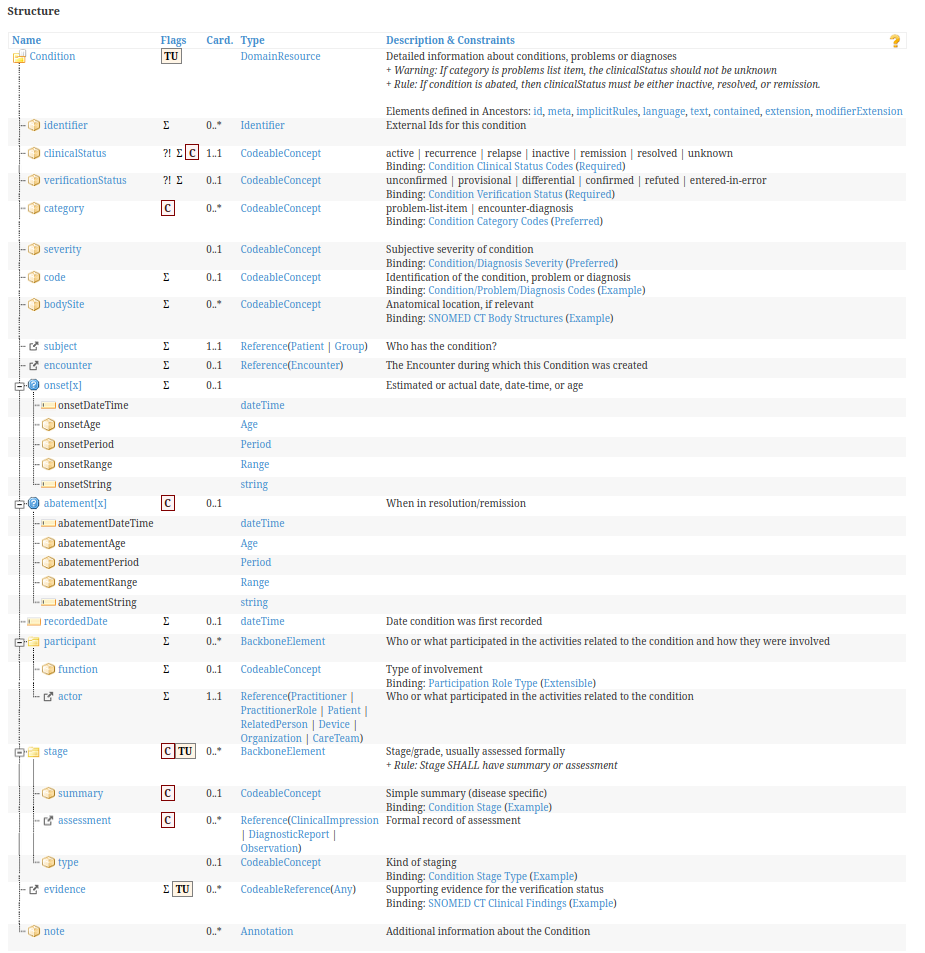
Let's try to dissect how to treat the different elements of this resource:
- Primitive data types are allowed and FHIR .NET API usually has a shortcut for elements that accept a primitive data element.
- For those elements with single cardinality (0..1 or 1..1), like clinicalStatus, verificationStatus, or subject, in FHIR .NET API you will use ElementName=ElementValue with ElementName= the "Name" in the first column and ElementValue instantiated based on the "Type" in the third column.
Example #C - 13: "Single Cardinality"
c.ClinicalStatus = new CodeableConcept()
{
//Only ONE clinical status
//Coding allows multiple coding for the same clinical status
Coding=new List<Coding>
  {
     new Coding(
      system:"http://terminology.hl7.org/CodeSystem/condition-clinical",
      code  :"active")
  }
}; - For those elements with multiple cardinality (1..* or 0..*), like identifier, bodySite, or category, in FHIR .NET API you will use ElementName.add(ElementValue) with ElementName= the "Name" in the first column, and ElementValue instantiated based on the "Type" in the fourth column, or use the "fluent" approach, which we will describe.
Let's review a complex type as an example. This element: stage not only can repeat but also is not defined using a FHIR DataType, but as BackboneElement, a combination of FHIR elements: summary (CodeableConcept), assessment (reference to specific resource classes: ClinicalImpression, DiagnosticReport, or Observation), and type (CodeableConcept).
Here we have two options, let's call them "fluent" and "structured."
"fluent": We will populate the element without any intermediate object, concatenating the population of the different elements as we create them using the constructor properties.
Example #C-14: Populating resources: "fluent" option
c.Stage.Add(

 //Special element for Stage with elements as subcomponents
 new Condition.StageComponent() {
  Type = new CodeableConcept() {
    Coding = new List < Coding > {
     new Coding(
         system: "http://snomed.info/sct",
         code: "422375001",
         display: "Carcinoma of Colon, Clinical stage III")
    }
   },
   Summary = new CodeableConcept() {
    Coding = new List < Coding > {
     new Coding(
         system: "http://snomed.info/sct",
         code: "385356007",
         display: "Tumor Stage Finding")
    }
   },
   Assessment = new List < ResourceReference > {
    new ResourceReference() {
         Reference = "DiagnosticReport/201993"
    }
   }
 }
);
"structured": We will create an intermediate object of a class called "|ResourceName|.|ElementName|Component"
In our example, it will be called Condition.StageComponent.
And then we populate this object before setting (or adding) it as (one of the) resource element value(s).
Although this strategy seems more convoluted, the code generated by the fluent version may become complex and difficult to reuse or edit.
Note: We don't recommend either of the two strategies over the other. Each developer or group should adopt whichever is best for their skill level and coding standards.
In the next example we will see the same content defined for the condition stage, populated using the "structured" approach
Example #C-15: Populating resources: "structured" option
//Create the stage intermediate variable, then set Type,Summary and Assessment
Condition.StageComponent cstc = new Condition.StageComponent();

cstc.Type = new CodeableConcept() {
 Coding = new List < Coding > {
  new Coding(system: "http://snomed.info/sct", code: "422375001", display: "Carcinoma of Colon, Clinical stage III")
 }

};

cstc.Summary = new CodeableConcept() {
 Coding = new List < Coding > {
  new Coding(system: "http://snomed.info/sct", code: "385356007", display: "Tumor Stage Finding")
 }
};

cstc.Assessment = new List < ResourceReference > {
 new ResourceReference() {
  Reference = "DiagnosticReport/201993"
 }
};
//Add the stage
c2.Stage.Add(cstc); - For elements that are "choices", the element needs to be created with one of the valid data type or element choices.
One example in the Condition resource is the "onset" element, defined as a choice between Age, DateTime, Period, Range and String.
Example #C-16: Populating resources: "Choices"
//Only one of them can be populated – so we use two different condition objects
//We are only showing two options for the choice here (Age and DateTime)
c.Onset = new Age() {
   Code = "y",
    Unit = "y",
    Value = 10 M
  };

c2.Onset = new Date("2019-02-02");
Micro Assignment #C-16: Populate a resource – "fluent" option
Create a program to populate an AllergyIntolerance resource using the "fluent" strategy, with the following information:
ClinicalStatus: active
Type: allergy
Category: food
Criticality: high
Patient: Patient/49293
Code: 91935009 (http://hl7.org/fhir/ValueSet/substance-code): Allergy to peanuts
onset: age 10.
Mirrored methods of the "set"/"add" method in FHIR .NET API, it provides you with this variety of methods to extract values from elements of a FHIR resource instance:
- To test whether an element is valued: instance.|ElementName|!=null.
This also applies to choice elements.
- To extract the value for a specific element: instance.|ElementName|()
- To get a specific item of a repeating element: instance. |ElementName|.[x] x=0...n
- To test whether an element or resource is empty: e!=null.
- To get the narrative for a resource instance.Text.Div.ToString()
Examples for these methods.
We will use a FHIR IPS-condition example to extract certain values:
Get the code and system for the ClinicalStatus
- To test whether an element is valued:
if (c.ClinicalStatus!=null)- To extract the system for the first coding for the clinical status:
Result=c.ClinicalStatus.Coding[0].Code
                                + "-" + c.ClinicalStatus.Coding[0].System
                                ;
Example #C-17: Extracting Information from Instances: "Getters"
string Result = "No Clinical Status";
Condition c = parser.Parse < Condition > (cnd);
if (c.ClinicalStatus != null) {
 if (c.ClinicalStatus.Coding != null) {
  if (c.ClinicalStatus.Coding.Count != 0) {
   Result = c.ClinicalStatus.Coding[0].Code +
    "-" + c.ClinicalStatus.Coding[0].System;
  }
 }
} Example #C-18: Choice Element to Specific Data Type
if (ob.Value.TypeName == "CodeableConcept") {
 CodeableConcept cc = (CodeableConcept) ob.Value;
 obsValue = cc.Coding[0].System.ToString() + "-" + cc.Coding[0].Code.ToString();

}
Micro Assignment #C-17: Extract information from an IPS Observation
Create a program to extract the following information from an IPS Observation in OBSERVATION.XML: text – status – category – code – date/time - value.
FHIR .NET API provides methods to:
- Populate simple extensions
- Assemble complex extensions
- Add extensions to your resource
- Add extensions to any element in your resource
- To populate a simple extension, just create a new Extension object:
Recipe #C-15: Populating a Simple Extension
Extension e = new Extension("|ExtensionURL|", new |ExtensionType| (|ExtensionTypeValue_1|,|ExtensionTypeValue_N|)); You need to replace:
| The URL defining the extension |
| Data type for the extension value |
| Value for each element in the data type |
Allowed extension data types should be described in the extension definition in the implementation guide, and limited to the data types described here: https://www.hl7.org/fhir/extensibility.html.
Example #C-19: Populate a simple IPS Extension
We will populate the IPS-defined extension for Allergy Abatement DateTime.
Extension e = new Extension(
"http://hl7.org/fhir/uv/ips/StructureDefinition/abatement-dateTime-uv-ips", new FhirDateTime(2018, 2, 2)); - To populate complex extensions, you need to first create the extension (only the URL), and then add all the simple extensions.
Recipe #C-16: Populate a Complex Extension
Extension complex_ext1=new Extension("|ComplexExtensionURL|")
Complex_ext1.extension.Add("|LocalExtensionURL_1|"
, new |ExtensionType_1| (|Extension_1_TypeValue_1|,...,<Extension_1_TypeValue_2|));
Complex_ext2.extension.Add("|LocalExtensionURL_2|"
, new |ExtensionType_2| (|Extension_2_TypeValue_1|,...,<Extension_2_TypeValue_2|));
You need to replace:
| The URL defining the complex extension |
| Local URL for the component of the complex extension |
| Data type for the extension component value |
| Value for each element in the data type for the extension component |
Example #C-20: Populate Complex Argonaut Extension
We will populate the Argonaut us-core-ethnicity extension for the Patient resource:
Extension extc1 = new Extension("http://hl7.org/fhir/us/core/StructureDefinition/us-core-ethnicity", null);

List < Coding > c1 = new List < Coding > ();
c1.Add(new Coding("urn:oid:2.16.840.1.113883.6.238", "2135-2", "Hispanic or Latino"));
List < Coding > c2 = new List < Coding > ();
c2.Add(new Coding("urn:oid:2.16.840.1.113883.6.238", "2184-0", "Dominican"));

extc1.Extension.Add(
new Extension("ombCategory", new CodeableConcept() {  Coding = c1  }));
extc1.Extension.Add(
new Extension("detailed", new CodeableConcept()    {  Coding = c2 }));
extc1.Extension.Add(new Extension("text", new FhirString("Hispanic or Latino")));
- To add your extensions to a resource, just invoke the AddExtension method.
Example #C-21: Adding an extension to a resource instance
c.Extension.Add(e);- To add your extensions to any element in your resource, you need to invoke the |ResourceName|.|ElementName|().Extension.Add method.
Example #C-22: Adding an extension to an element
Here we add the HL7 BirthTime extension to the BirthDate element of the Patient resource:
Extension exte = new Extension("http://hl7.org/fhir/StructureDefinition/patient-birthTime", new FhirDateTime("1965-06-05T20:30:40"));
MyPatient.BirthDate = "1965-06-05";
MyPatient.BirthDateElement.Extension.Add(exte);
Micro Assignment #C-18: Create a Patient resource with extensions
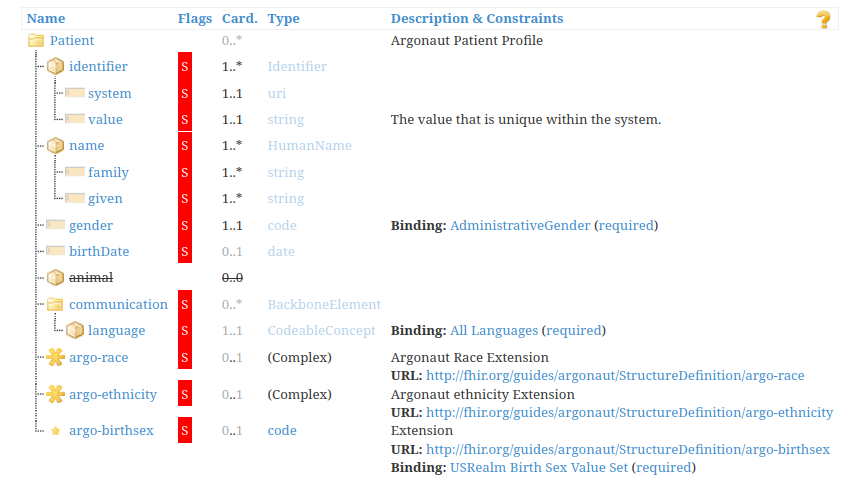
Create a patient resource with all the extensions required by the Argonaut IG.
Introduction
FHIR .NET API provides methods to:
- Test if a specific extension (or any extension) exists in a resource or element, including extensions (!)
- Get a specific extension (by index)
- Get the URL for an extension
- Determine the value type for an extension
- Get the value for an extension
Test if a specific extension exists
To test if any specific extension exists: use the GetExtension method – will return null if the extension does not exist. Count will give you the number of extensions in a resource.
Recipe #C-17: Test for Extensions in an Instance
Extension MySpecificExtension =
 |MyObject|.GetExtension("|ExtensionUrl|");

|MyObject|.Extension.Count!=0;
You need to replace:
| url defining the extension, if this parameter is not included, hasExtension returns true if the object has any extensions at all |
| Any resource or extension (for complex extensions) |
Get a Specific Extension by Index
To get a specific extension from an object (by index) use the Object.Extension[x] method.
Example #C-23: Get all extensions from a resource/element
string ExtList = "";
for (int i = 0; i < MyPatient.Extension.Count; i++) {
 ExtList = ExtList + MyPatient.Extension[i].Url + "\r\n";
}
Get the URL and Value type for an extension
To get the URL and value type for an extension, use the Extension[x].Url and the Extension[x].Value.TypeName method
Example #C-24: Get URL/Data Type for an extension
ExtList = "";
for (int i = 0; i < MyPatient.Extension.Count; i++) {
 string ExtURL = MyPatient.Extension[i].Url;
 string ExtType = "null";

 if (MyPatient.Extension[i].Value != null) {
  ExtType = MyPatient.Extension[i].Value.TypeName;
 }

 ExtList = ExtList + ExtURL + ":" + ExtType + "\r\n";
}
Get the actual value from an extension
To get the actual value from an extension, it really depends on the extension value data type, so you need to cast the value to the appropriate data type based on the TypeName.
Example #C-25: Get the code from a Code type extension
if (MyPatient.Extension[i].Value != null) {
 ExtType = MyPatient.Extension[i].Value.TypeName;
 if (ExtType == "code") {
  Code c = (Code) MyPatient.Extension[i].Value;
  MyValue = c.Value;
 }
}
Micro Assignment
Micro Assignment #C-19: Extract all coded data from a patient resource extension
The file PATIENT_EXTENSIONS.XML has an Argonaut patient resource with all the extensions fully populated. Extract the codes for the "coding" extensions for the complex extension with the URL http://hl7.org/fhir/us/core/StructureDefinition/us-core-race
In the following sections, we will consider only how to populate transaction and document bundles, which you will probably need to populate as a FHIR client.
The techniques we will show you will allow you to populate these artifacts when programming a FHIR-server as well.
Introduction
To populate transaction bundles as a client, you need to:
- First, create the bundle and populate the header: at least: bundle type (transaction), bundle id (UUID)
- Add each entry, where each entry has:
- A fullUrl element, with an UUID identifying the resource inside the transaction
- A resource element, with the actual resource. Remember that references within the transaction point to the fullUrl for other entries
- A request element, including method (PUT or POST) and URL (search criteria for conditional create/update)
- Execute the transaction to the server and read the transaction response.
Creating the Transaction Bundle
The only mandatory elements are the bundle type (transaction) and a new identifier for the bundle. We recommend using a GUID, by invoking Guid.NewGuid().
Example #C-26: Create a Transaction Bundle, Populate Header
Bundle bt = new Bundle(); {
 bt.Type = Bundle.BundleType.Transaction;
 bt.Id = Guid.NewGuid().ToString();
}
Adding the Entries to the Bundle
For each resource that you need to include, you need to add an entry.
The entry will include:
- A fullUrl element, with a UUID identifying the resource inside the transaction
- A resource element, with the actual resource. Remember that references within the transaction point to the fullUrl for other entries
- A request element, including the method (PUT or POST) and URL (search criteria for conditional create/update)
Example #C-27: Add Entry to a Bundle
Identifier did = new Identifier("http://wwww.americandevices.com", "123456");
Device d = new Device();
d.Identifier.Add(did);
d.DeviceName.Add(new Device.DeviceNameComponent() {
 Name = "BLOOD PRESSURE MASTER"
});
d.Version.Add(new Device.VersionComponent() {
 Value = "1.23.78"
});
d.Manufacturer = "AMERICAN BLOOD PRESSURE DEVICES";
d.ModelNumber = "2000 PLUS";
d.SerialNumber = "123456";
//The patient for the device is the one in the first entry of the transaction
d.Patient = new ResourceReference() {
 Reference = "Patient/" + PatientEntryId,
  Display = p.Name[0].Given + "," + p.Name[0].Family

};
string DevToken = d.Identifier[0].System + "|" + d.Identifier[0].Value;
string DevUrl = "Device?identifier=" + DevToken;

bt.Entry.Add(
 new Bundle.EntryComponent() {
  FullUrl = DeviceEntryId,
   Resource = d,
   Request = new Bundle.RequestComponent() {
    Method = Bundle.HTTPVerb.PUT,
     Url = DevUrl
   }

 });
Executing the Bundle Transaction
Remember that we need to post to the fullURL of the server, with no resource specified (the server's "FHIR endpoint").
Example #C-28: Execute a Bundle Transaction
Bundle t_result = client.Transaction(bt);
string t_response = "";
foreach(Bundle.EntryComponent r in t_result.Entry) {
 t_response = t_response + r.Response.Location + "\r\n";
}
Console.WriteLine(t_response);
Micro Assignment
Micro Assignment #C-20: Create a Transaction Bundle
Create a transaction bundle with a patient, device and the blood pressure readings (systolic and diastolic).
If you have any trouble with the transaction, i.e. error 422 because an identifier is repeated in our server, just change the patient or device identifier.value to something more unique.
To populate document bundles, you need to;
- First create the bundle and populate the header: at least: bundle type (document)
- Add a first special entry, containing a resource element: Composition.
- Add other entries, where each entry has:
- A fullUrl element, with an UUID identifying the resource inside the transaction
- A resource element, with the actual resource. Remember that references inside of the transaction point to other entries' fullUrl.
- Post the document bundle to the server and read the server response.
Example #C- 31: Create an IPS Document Bundle
Micro Assignment #C-22: Add an IPS-conformant immunization section and entry to our IPS bundle
Begin with our example above, and modify it to add an immunization section to the composition and the corresponding immunization entry (conformant to the IPS).
Introduction
You can process each resource in a document bundle using the Entry element (remember that it is a list of entries).
For each entry you can extract the actual resource using entry.Resource and the full url using entry.FullUrl. You can also get the resource type, using entry.Resource.TypeName.
To extract a specific kind of resource you will need to cast it, as in (|SpecificResourceClass|) entry.Resource ).
Example
Example #C-32: Process all entries in a bundle
foreach(Bundle.EntryComponent entry in bt.Entry) {
 string fullUrl = entry.FullUrl;
 string ResourceType = entry.Resource.TypeName;
 if (ResourceType == "Patient") {
  Patient pat = (Patient) entry.Resource;
  string PatientName = NAM(pat);  //NAM gets given and family
  Console.WriteLine(PatientName);
 }
}
Micro Assignment
Micro Assignment #C-23: Extract elements from ips document (ips_document.json)
Note: Extract Patient Name, Identifier and Condition code.
Introduction
In order to include resources as contained, the easiest way is to use this three-step method:
- Populate the Id element of the contained resource with a unique string valid for XML reference. The string needs to be unique for the container resource.
- Call contained.add() to add the contained resource to the container resource
- Set ElementName=ResourceReference(Id) for the Reference element in the container resource where you need the reference to the contained resource
Recipe and Example
Recipe #C-18: Include contained resources
//Set Internal Id
|MyContainedResource|.Id = "#|ReferenceString|";
//...Other device attributes
//Add Contained Resource
|MyContainerResource|.Contained.Add(|MyContainedResource|);
//Set the internal reference
|MyContainerResource|.|ElementName| = new ResourceReference(|MyContainedResource|.Id);
You need to replace:
| The instance of resource to be contained |
| The instance of resource containing the other(s) |
| The FHIR .NET API function to set the element referencing the contained resource |
| Unique string identifying the contained resource |
Example #C-29: Add a Contained Resource to an Observation
Device MyDevice = new Device();
Observation obs = new Observation();
//Set Internal Id
MyDevice.Id = "#MyDevice";
//...Other device attributes
//Add Contained Resource
obs.Contained.Add(MyDevice);
//Set the internal reference
obs.Device = new ResourceReference(MyDevice.Id);
Micro Assignment #C-21: Add a contained asserter element to an allergy-intolerance resource
In order to extract contained resources, you will need to use two methods:
- The Contained element is an array with all the contained resources, so you can use resource.Contained[i] to get any specific resource from the array. i: 0...resource.Contained.Count.
- You need to cast the resource to its specific class to access the resource elements.
- There is also a helper method called FindContainedResource to get a specific contained resource if you know the reference string ("#..."), but it's the same as doing
(|ContainedResourceType|)|Container|.Contained.Find(x => x.Id == "#Reference");
Example #C-30: Get the Contained Device's Name and Type
Observation obs = new Observation();
Device FoundDevice = (Device) obs.Contained.Find(x => x.TypeName == "Device");
if (FoundDevice != null) {
 string DeviceName = FoundDevice.DeviceName[0].Name;
 string DeviceType = FoundDevice.Type.Text;
}
Once you have your resource in string format (res), you will need to instantiate a parser.
The options are:
Hl7.Fhir.Serialization.FhirJsonParser() or
Hl7.Fhir.Serialization.FhirXmlParser();
To actually parse the string and create your resource, just call parser.Parse<ResourceClass>(res);
Recipe #C-19: Parsing a Resource
var parser = new Hl7.Fhir.Serialization.Fhir|ResourceFormat|Parser();
|ResourceClass| bt = parser.Parse <|ResourceClass|> (json);
You need to replace:
| JSON or XML |
| The kind of resource |
Example #C-33: Parsing a Document Bundle from a JSON file
//Remember the FHIR .NET API Dependencies: Hl7.Fhir.Model and Hl7.Fhir.Rest
//Get the JSON file
string fileName = AppContext.BaseDirectory + "FILENAME.JSON";
string json = System.IO.File.ReadAllText(fileName);
//This doesn't need a client
var parser = new Hl7.Fhir.Serialization.FhirJsonParser();
//Parse into a bundle
Bundle bt = parser.Parse<Bundle>(json);
Micro Assignment #C- 24: Read the PATIENT.XML file and parse it; print the patient name and identifier to the console
Introduction
FHIR .NET API provides methods for both basic resource validation (against the core specification schemas) – which we have already explained, and profile based resource validation.
Let's explore the latter option:
Profile Declaration
You need to set the value for the meta.profile element of your resource to the canonical URL for the profile.
<meta>
  <profile
             value="http://myorganization.org/StructureDefinition/myprofilename"/>
</meta>
In C#, this is achieved with these lines of code:
 Meta md = new Meta();
            md.Profile = new string[] {
    "urn:" + "http://myorganization.org/StructureDefinition/myprofilename"
resource.meta = md;
Profile Based Resource Validation (Server based)
If you have one server with all the required profiles (StructureDefinitions), ValueSets and CodeSystems (example: for a given implementation guide), you can call the server $validate operation with the profile declared in the meta element of the resource.
Example #C-34: Executing $validate for a patient resource
Patient pa = parser.Parse < Patient > (xml);
Parameters inParams = new Parameters();
inParams.Add("resource", pa);
OperationOutcome val = client.ValidateResource(pa);
Hl7.Fhir.Serialization.FhirXmlSerializer s = new Hl7.Fhir.Serialization.FhirXmlSerializer();
String results = s.SerializeToString(val);
Console.WriteLine(results);
Micro Assignment #C-25: Use $validate to assess an instance conformance to US-Core
Validate an instance of Patient using the $validate operation against a FHIR server.
FHIR server: https://hl7-ips-server.hl7.org/fhir/
Profile canonical URL: http://hl7.org/fhir/us/core/StructureDefinition/us-core-patient
Instance: Located in the PATIENT_EXTENSIONS.XML file
Introduction
FHIR .NET API implements serializing with two options (JSON and XML).
To serialize an object into a string format, you need to specify which format when initializing a serializer object and then invoke one of the serialize methods, depending on your desired output.
Formats
Hl7.Fhir.Serialization.FhirXmlSerializer();
Hl7.Fhir.Serialization.FhirJsonSerializer();
Methods
SerializeToString() -> String
SerializeToByte() -> Byte Array
SerializeToDocument() -> XDocument instance
Recipe #C-20: Serializing Resources
Hl7.Fhir.Serialization.Fhir|ResourceFormat|Serializer s = new Hl7.Fhir.Serialization.Fhir|ResourceFormat|Serializer();
String results = s.SerializeToString(|Resource|);
You need to replace:
| JSON or XML |
| The resource instance |
Example #C-35: Serializing a Practitioner resource into JSON format
//Step 1: Create The Instance
var MyPractitioner = new Practitioner();
//Step 2: Populate The Instance
MyPractitioner.Active = true;
MyPractitioner.Name.Add(new HumanName().WithGiven("Madeleine").AndFamily("Dellacroix"));
MyPractitioner.Identifier.Add(new Identifier("http://canada.gov/cpn", "51922"));
MyPractitioner.Telecom.Add(new ContactPoint(ContactPoint.ContactPointSystem.Phone,
 ContactPoint.ContactPointUse.Work,
 "613-555-0192"));
MyPractitioner.Telecom.Add(new ContactPoint(ContactPoint.ContactPointSystem.Email,
 ContactPoint.ContactPointUse.Work,
 "qcpamxms9dq@groupbuff.com"));
Practitioner.QualificationComponent qc = new Practitioner.QualificationComponent();
qc.Code = new CodeableConcept("http://canada.gov/cpnq", "OB/GYN", "Gynecologist");
MyPractitioner.Qualification.Add(qc);
Hl7.Fhir.Serialization.FhirJsonSerializer s = new Hl7.Fhir.Serialization.FhirJsonSerializer();
String results = s.SerializeToString(MyPractitioner);
Introduction
The settings property allows you to specify some of the options:
Option | Description |
Serializer.Settings.AppendNewLine | Append a new line after the output true/false |
Serializer.Settings.Pretty | Pretty Print XML / JSON true/false |
The Serialize...() methods allows you to specify some other options:
Option | Description |
summary | Options are described by the SummaryType enum Count: Only the count, for searches Data: No Narrative text False: Everything (default value) Text: Only mandatory elements and text True: only include elements marked as summary (Σ) in the FHIR Spec (true/false), no narrative. |
elements[] | Array of element names to include in the serialization |
Recipe #C-21: Options for Resource Serialization
Options are specified when invoking the encode method like this:
Hl7.Fhir.Serialization.Fhir|ResourceFormat|Serializer s = new Hl7.Fhir.Serialization.Fhir|ResourceFormat|Serializer();
s.Settings.AppendNewLine = |appendoption|;
s.Settings.Pretty = |prettyoption|;
string[] ElementList = {
 "|element_name_1|",
 "|element_name_2|"
};
String results = s.SerializeToString(instance: |ResourceInstance|, summary: SummaryType.|sumaryoption|, elements: ElementList);
You need to replace:
| JSON or XML |
| The resource instance |
| True/false for append new line |
| True/False for pretty print |
| Option for summary (True/False/Data/Text/Count) |
| Names of elements to include in the serialization |
Micro Assignment #C-26: Use serialization options
Use the appropriate options to serialize the Practitioner example from the previous page, omitting the narrative, using only the summary elements and avoiding pretty print. If you do it right, there is one element (other than the narrative) that will not be serialized as part of the resource . Find out which one.
Introduction
We need to explore several techniques related to searching in FHIR .NET API.
In the following sections, we will review:
- how to specify the search parameters
- how to process the search results
- how to implement paging
You can express the search query by criteria (most basic) or more complex query using the query variant.
By Criteria: Just include the criteria search parameters using a string array.
The criteria must be prefixed by the resource type, but the syntax for URL is the same you would use when writing the search manually. The FHIR .NET API object reference would not be helping you to write or validate it.
Example #C-36: Search by Criteria
Bundle bu = client.Search < PractitionerRole > (new string[] {
 "specialty=http://nucc.org/provider-taxonomy|208D00000X"
});
Hl7.Fhir.Serialization.FhirJsonSerializer s = new Hl7.Fhir.Serialization.FhirJsonSerializer();
s.Settings.Pretty = false;

String results = s.SerializeToString(instance: bu, summary:  SummaryType.True);
Using SearchParams: Here you can use more options, and the syntax is a little clearer.
You need to specify |Resource| and put in a Where() clause with the condition you want to specify for your search (you can add conditions using the Add() method).
Some options you can also specify using Query: Sort Order (OrderBy), Summary, Included resources (Include), Limits on returned Resources Qty (Limit).
We don't know of an overall reference on how to use SearchParams and what you can include, but to give you an idea, here is an example of a search using it.
Example #C-37: Search using SearchParams
var q = new SearchParams()
 .Where("specialty=http://nucc.org/provider-taxonomy|208D00000X")
 .Include("practitioner:practitioner")
 .LimitTo(50)
 .OrderBy("family", Hl7.Fhir.Rest.SortOrder.Ascending);

q.Add("address-city", "Boston");
Bundle bu2 =
 client.Search <PractitionerRole> (q);
You will need to hand-craft your search criteria in both cases, using the same syntax you would use in Postman.
The result will be returned in a Search results bundle.
We discussed in previous sections how to retrieve all the entries in a Document bundle.
You can use the Entry list to process the returned results.
Example #C-38: Processing search results
In this example we just go through the entries in the bundle.
Bundle bu4 = client.Search < Practitioner > (new string[] {
 "address-city=Boston"
});
foreach(Bundle.EntryComponent ent in bu4.Entry) {
 Practitioner pr = (Practitioner) ent.Resource;
 listPra = listPra + pr.Identifier[0].Value + "-" + pr.Name[0].Family + "," + pr.Name[0].Given.First().ToString();
}
To implement paging you need to use the continue method:
- If the current bundle has a link element pointing to the next page, use the Client.Continue(bundle,direction: PageDirection.Next) method to retrieve the next page.
- If the current bundle has a link element pointing to the previous page, use the Client.Continue(bundle,direction: PageDirection.Previous) method to retrieve the previous page.
Example #C-39: Search with paging
Example #C-40: Search Practitioners
Micro Assignment #C-27: Patient search by demographic data, identifier, and by_url
- Search for all patients with last (family) name exactly = "Smith," gender=male, born after 05-May-1965.
- Search for the patient with identifier [system] http://hospital.gov/patients [value] 9999999 (Medical Record Number).
- Search for all patients with any name matching "John," gender=female, using the SearchParams search variant.
In order to encourage you to actually perform the micro assignments, the solutions are not included into each section but grouped here, so if you choose to read the solution instead of working it out, you can find all the solutions and examples here:
https://www.dropbox.com/sh/rplbyzt8v7btxlg/AABG86-4LZkEUf6SwrIL7yUfa?dl=0
This week will have formal "programming" assignments. We will ask you to change or enhance some programs using the FHIR .NET API client.
You can choose between two tracks: Argonaut and IPS.
In the Argonaut track, you will consume and create Argonaut-compatible resources, and search FHIR servers for patient demographics, provider information and terminology using
the FHIR .NET API.
In the IPS track you will consume IPS documents and show some of the underlying resources using the FHIR .NET API.
FHIR is just a specification. In order to do real work, we need to use our desired platform to program our access to FHIR servers.
The goal of this unit was to help you grasp common concepts that apply to all clients in FHIR and then apply them to the most used platforms/languages (Java, C#, JS).
Information about FHIR
There are a number of places where you can get information about FHIR.
- The specification itself is available on-line at www.hl7.org/FHIR. It is fully hyperlinked and very easy to follow. It is highly recommended that you have access to the specification as you are reading this module, as there are many references to it –particularly for some of the details of the more complex aspects of FHIR.
- All the subjects detailed in this unit are deeply documented in the FHIR specification and implementation guides. If you can't explain something, this should be the first source-of-truth.
- The root HL7 wiki page for FHIR can be found at http://wiki.hl7.org/index.php?title=FHIR. The information here is more for those developing resources, but still very interesting. Some wiki information is more historical and may not reflect the most recent version of the specification.
- The team uses the FHIR chat ( http://chat.fhir.org) as a place to answer implementation-related questions –and therefore have both question and answer available for reference.