In this document we will help you understand the dotnet/C# projects and code and where you need to intervene in order to complete our assignments
We think you have your environment ready from the previous unit.
Just in case:
- Visual Studio Code (VSC) or any other C# IDE (Visual Studio 16+)
(We use Visual Studio Code because we use the same editor for all the platforms)
- dotnet 6.0.201 or +
We are giving you TWO dotnet projects:
FHIR-SERVER CSHARP project
The FHIR server you will intervene to add functionality / fix
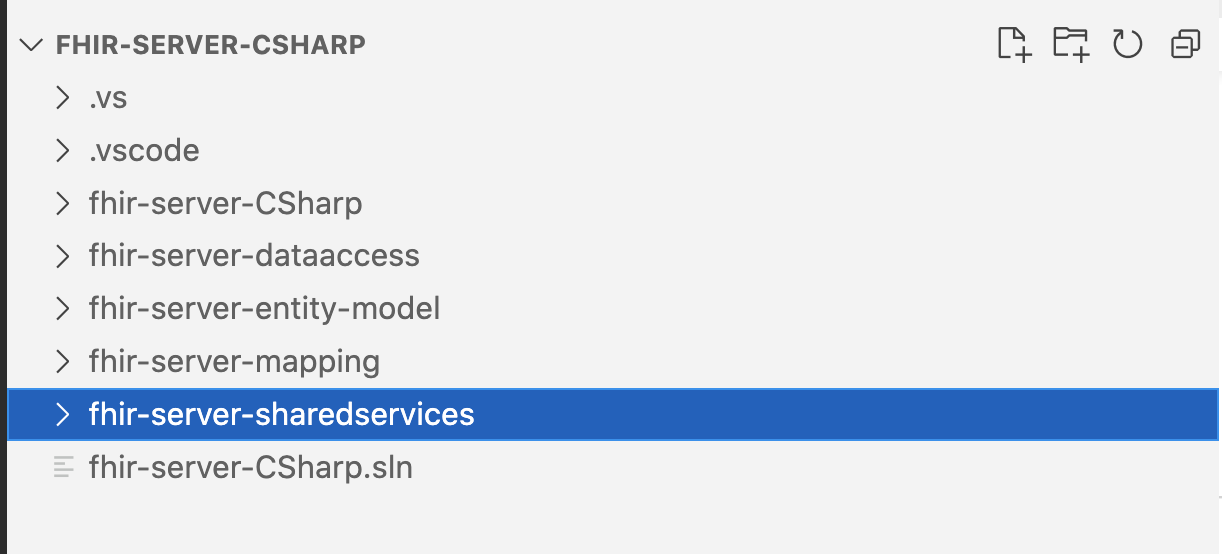
To start the C# FHIR Server, just run the project using Run without debugging or use dotnet run in the terminal from the fhir-server-csharp folder.
You should see a message stating "Web Server Started" and then the address.
Example: http://locahost:5834/api/FHIR
TESTER project
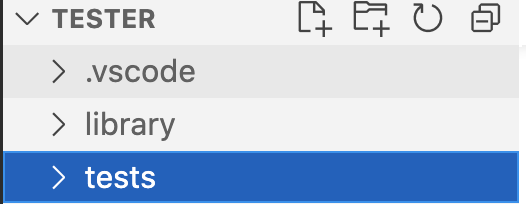
The project has two folders: tests and library.
You need to focus on ‘tests' because it contains all the test and the submission creator utility (is implemented as another test).
However, in the library folder there is a config.cs file which contains the ServerEndpoint and Validation configuration. Check that the ServerEndPoint is the one that you saw in the previous step.
So, you will modify FHIR-SERVER CSHARP and use TESTER (in a different window) to test it.
Postman Collection
We also provide a postman collection. If you are used to test your APIs with Postman, this is an easy way before using the Tester project
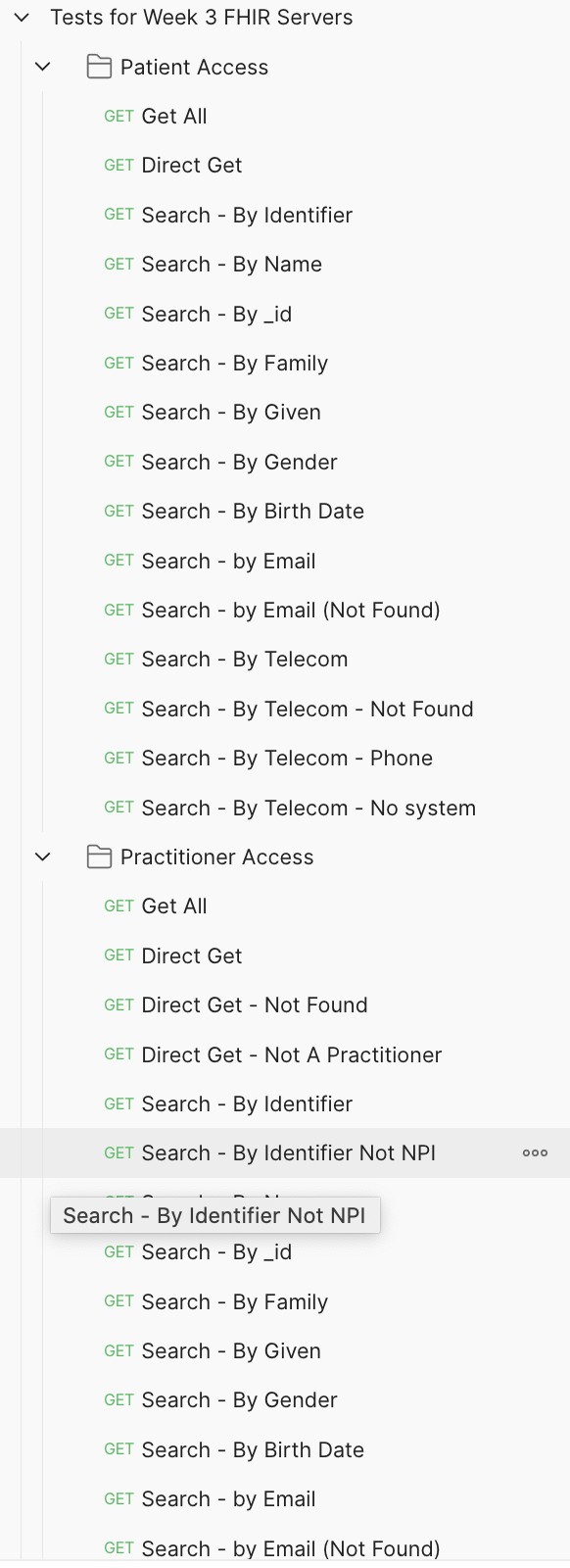
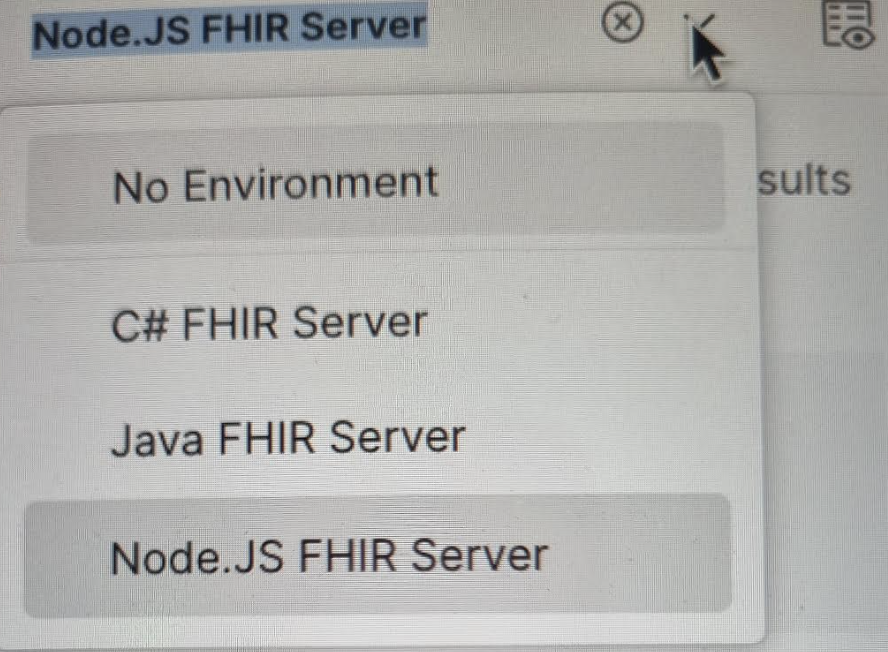
Remember to change the environment to C# FHIR Server before testing.
The Environment menu is in the top-right corner in Postman
For this assignment you need to add search parameters telecom and email to the Patient resource.
Tip#1.1: Where to look:
PatientSearchParameterValidation.cs
Check that the new parameters are included as valid.
Add the new parameters and their value to the search Criteria (look at how the other parameters are handled)
Tip#1.2: Review and edit the CapabilityStatement in the CapabilityOfTheServer method
Add your new search parameters
Tip#1.3: Remember that for telecom searches, when the system is not equal to email, we want you to raise an exception message, because the underlying API/db does not support phone as an element.
How to do that? You need to put this...somewhere:
Program.HttpStatusCodeForResponse = (int)HttpStatusCode.NotImplemented;
operation = Utilz.getErrorOperationOutcome($"HTTP 501 Not Implemented: The underlying server only handles email addresses for the patients, thus search by system=phone is not implemented");
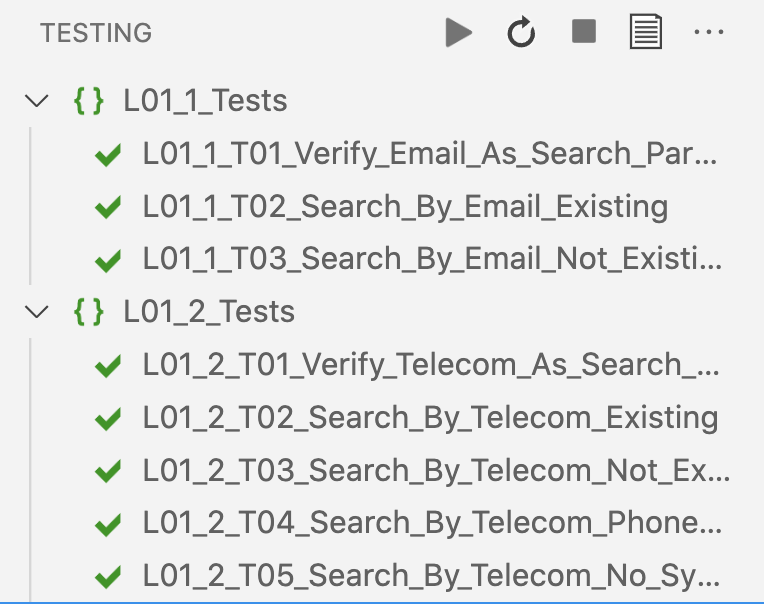
Tip#1.6: After implementing, run the set of tests for L01 in the TESTER project using the dotnet test tooling in your IDE - you should see something like this if you are successful
For this assignment you need to implement support for the Practitioner resource, using the same underlying person API.
This resource (Practitioner) is not supported yet.
Tip#2.1: Where to look? You need support a new resource (luckily is very similar to a resource that is already implemented)
1- Create the Parameter Validation class
PractitionerSearchParameterValidation.cs class.
2- Create the route inside of the main program.cs
Practitioner_Route method
3- Add the resource to the valid resources. Review the method: IsResourceAllowedInThisServer(HttpListenerRequest request, out string resource)
4- Create the PractitionerDataAccess.cs in the fhir-server-dataaccess project
This class implements access to the entities in the LegacyAPI. You can use them to add specific filters (specially the NPI filter)..
They only include three methods (GetAll, Get{{Resource}}). These methods return all the entities or the entities filtered by a specific search criteria.
5- Create the Mappers for the Resource and the Resource Bundle inside of the fhir-server-mapping project
MapPractitioner.cs class.
MapPractitionerBundle.cs class.
6- Incorporate the resource, search parameters and interactions in the CapabilityStatement
Edit the CapabilityStatement_route method
Tip#2.2: Remember to change all references to Patient into Practitioner
Tip#2.3: Remember that birthdate is not one of the parameters for Practitioner search - review the search parameter validation class and your CapabilityStatement
Tip#2.4: Remember that for telecom searches, when the system is not equal to email, we want you to raise an exception message, because the underlying API/db does not support phone as an element.
How to do that? You need to return an OperationOutcome, like we did in the previous assignment.
Tip#2.5: Remember that only the NPI identifier is allowed for identifier searches. You need to return a specific message if this is not the case, via an OperationOutcome, in the search parameters validation class.
Tip#2.6: Remember to filter in any other search: only persons with one NPI identifier are included in all searches (name, family, gender, etc.)
Tip#2.7: Remember that if you receive a direct get (Practitioner/xxx) and the person does not have a NPI identifier, you need to return a specific error message (Operation Outcome)
Tip#2.8: After implementing, run the set of tests for L02 in the TESTER project using the dotnet test tooling in your IDE - you should see something like this if you are successful
For this assignment you need to fix the support for the MedicationRequest resource
This resource is already supported.
Tip#3.1: Where to look?
Only one method to review - the mapper from Legacy to FHIR Resource, to fix what is needed for FHIR/US Core conformance and add what is requested in the assignment (warning message for opioids and requester.display):
public static MedicationRequest GetFHIRMedicationRequestResource(LegacyRx rx)
This method is in the MapMedicationRequest.cs class in the fhir-server-mapping project.
Tip#3.2: Remember to review the resource this code creates and see what is missing to make it compliant with FHIR and US CORE MedicationRequest
Tip#3.3: Then you need to use the Legacy API to recover the Practitioner name and add it as display for the requester.
Tip#3.3: Finally, use the Legacy API to check whether the prescribed medication is an opioid, and add the warning message there.
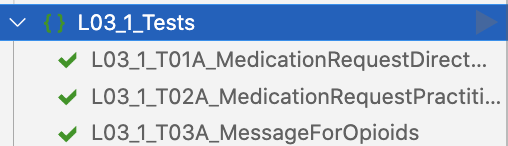
Tip#3.4: After implementing, run the set of three tests for L03 in the TESTER project using the dotnet test tooling in your IDE.
Run the special test called SubmissionCreator from the testing tool in your IDE.
This will create a file called FHIR_INTERMEDIATE_U3_SUBMISSION...JSON in your app folder (do not look in the project folder, the file will be in the debug bin folder)
Send the submission file using the assignment block ‘Send your Submission Text'
Send the submission code (Only the classes you modified) using the assignment block ‘Send your Submission Code'